Rust
Activation instructions:
- Only receive items in the "GOOGLE CHROME" browser via PC, you will not be able to receive rewards using your phone. This is due to the poor performance of TWITCH in other browsers, in particular yandex. You can try to do it first in your main one (if you are not using chrome), but if you fail to enter twitch, you must use it. The browser can be downloaded from the link: google.com/intl/en/chrome.
- On TWITCH.TV log out of your account and log into the purchased twitch account.
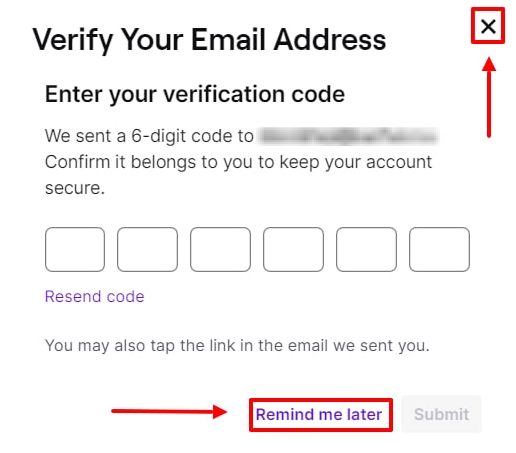
- If twitch asks you for a code from the mail then press "remind later", "cross" or F5 on your keyboard.
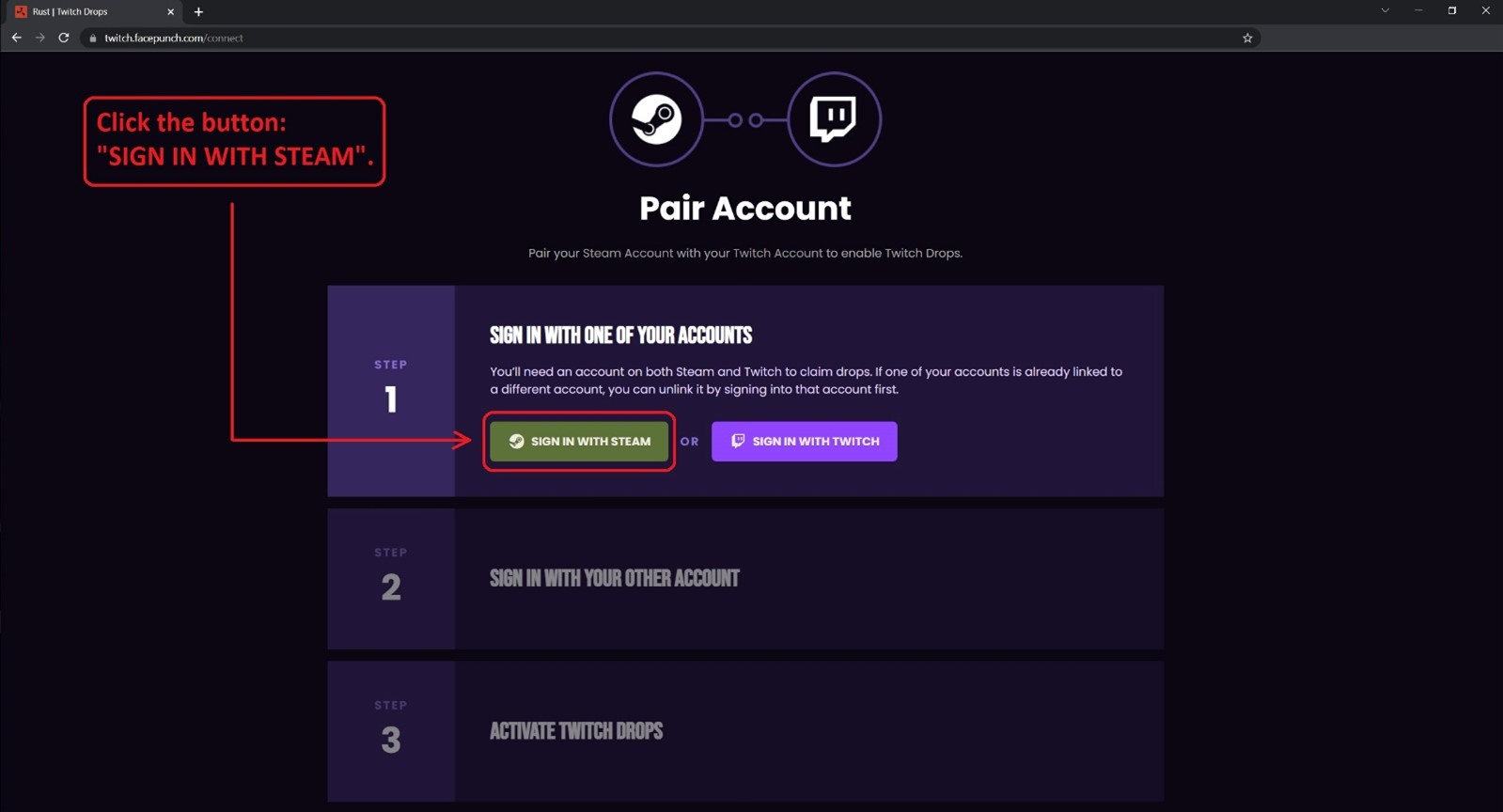
- Follow the link: twitch.facepunch.com/connect.
- Connect YOUR STEAM account to which you want to receive items. The game RUST must be purchased on the account (NOT family access, but purchased).
- If after connecting YOUR STEAM account you got to a page similar to the picture below, then you have already linked TWITCH and STEAM on this site. You need to unlink your accounts. The binding is reset by pressing one button, which is indicated by an arrow in the picture below. After you have reset the binding, return to step №4 of this instruction (start over).
- Connect purchased twitch account.
- Click on the “ACTIVATE DROPS” button. If you are not redirected to the right page, open it yourself using the link twitch.facepunch.com/connect or click on "CONNECT ACCOUNT" at the top.
- Click on the “CHECK FOR MISSING DROPS” button.
- If after pressing the “CHECK FOR MISSING DROPS” button you see the message "Attempting to give your Steam account X Twitch Drops...", then all the skins are already in your account's STEAM inventory.
- Go to your STEAM/RUST inventory, BE SURE to restart the game so that all skins are displayed. Enjoy your purchase 😉
VERY IMPORTANT! FIRST YOU NEED TO CONNECT YOUR STEAM ACCOUNT, NOT PURCHASED TWITCH ACCOUNT, OTHERWISE YOU WILL NOT BE ABLE TO RECEIVE ITEMS.
ㅤ
In case you have landed on another page that is not similar to the picture below, that is, you do not have the “UNLINK ACCOUNT” button, then ignore this step №6 and the picture below. Go straight to step №7 (the next step).
ㅤ
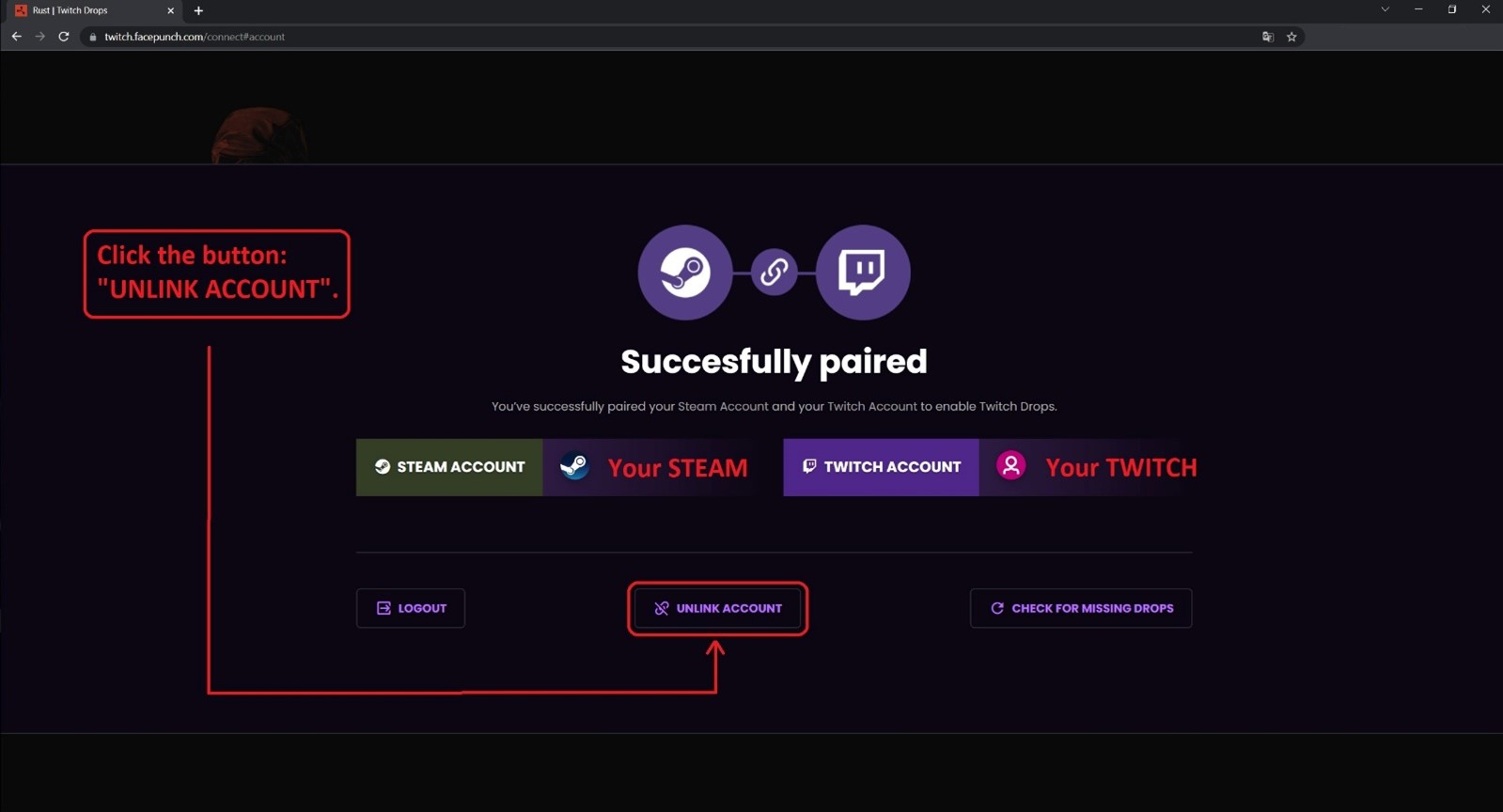
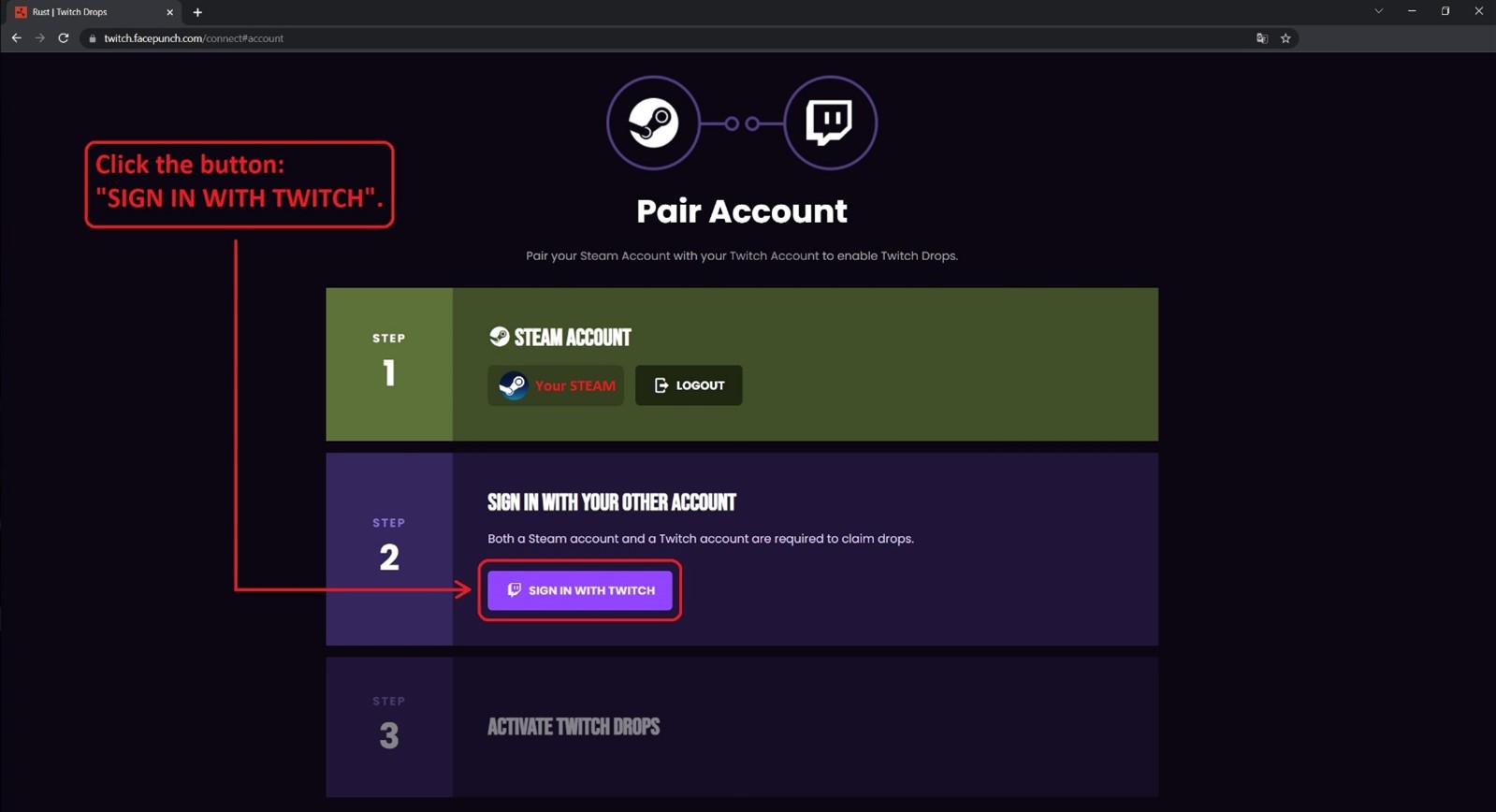
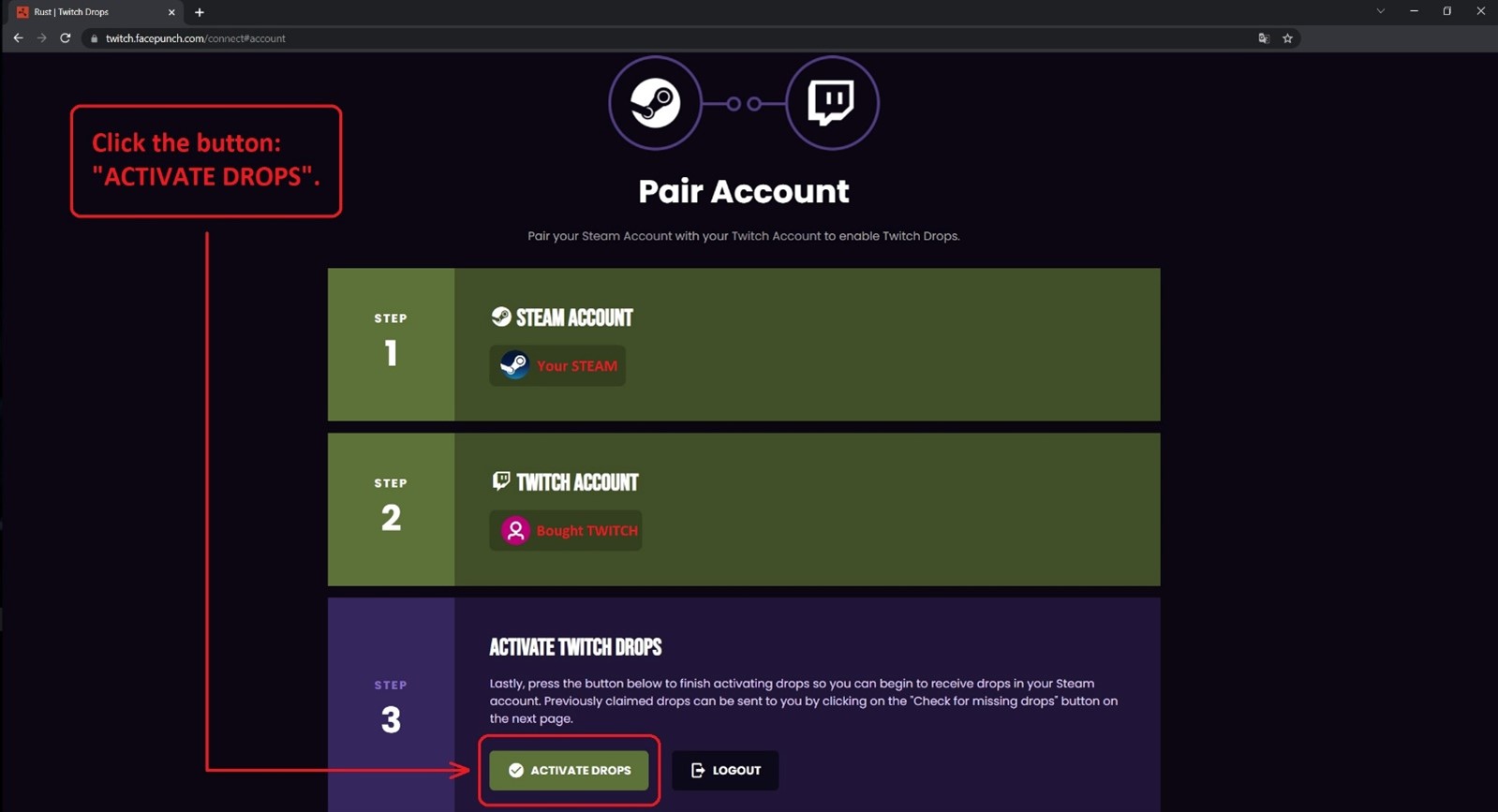
If you are not redirected anywhere and you still remain on this page, it means that you ignored the text when issuing the product, the instructions, the screaming red text in paragraph 4 and linked the Twitch first. Dont worry. You need to unlink Twitch first, and then Steam (LOGOUT BUTTON, KEEP IN ORDER) and do everything from the very beginning according to the instructions, this time without missing the points, otherwise you won’t be able to get to point 9.
ㅤ
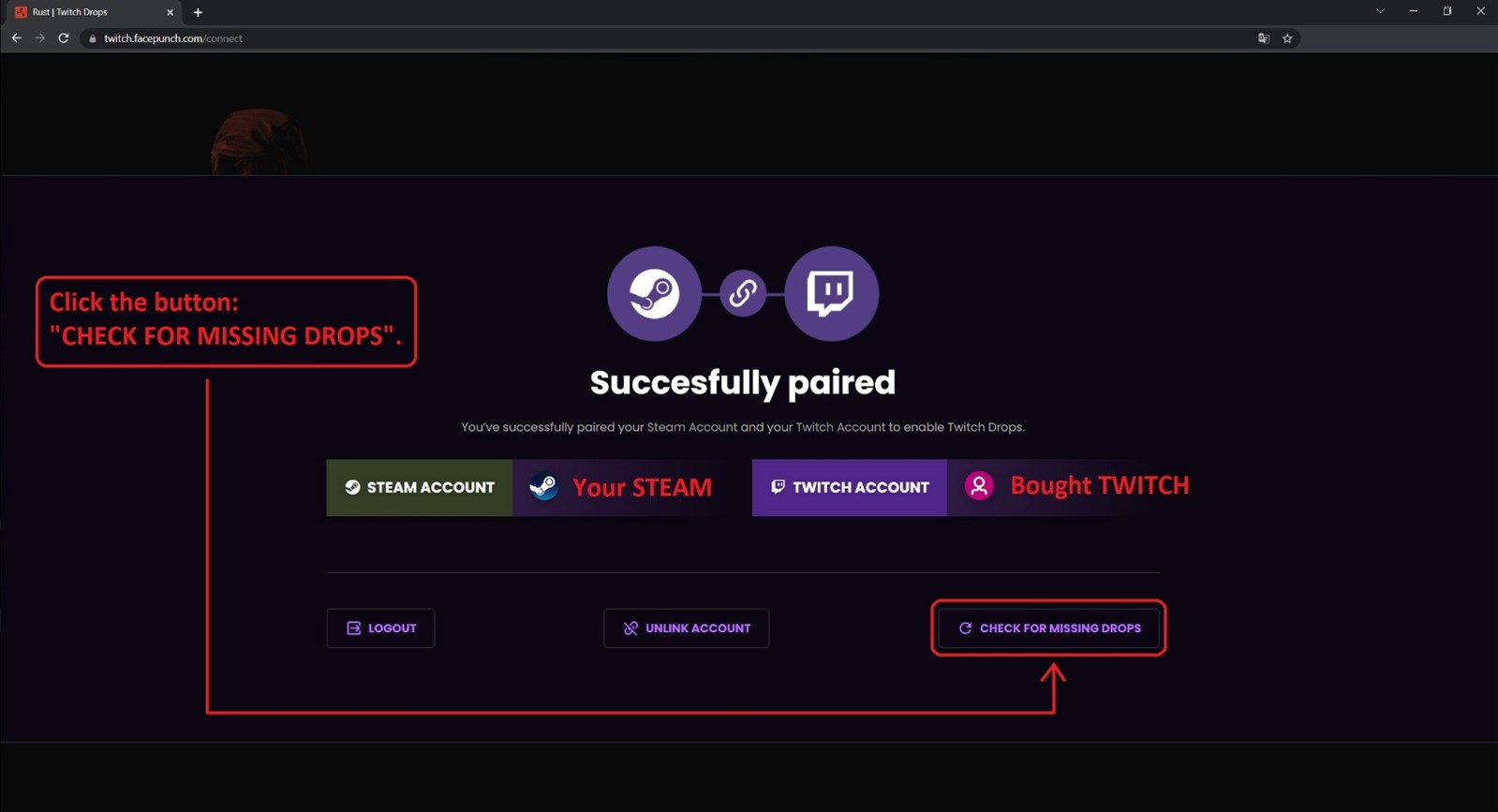
If this button does not appear, it means that you first linked the purchased twitch account, and only then STEAM, which is absolutely forbidden to do. Look at the red text in point 8.
ㅤ
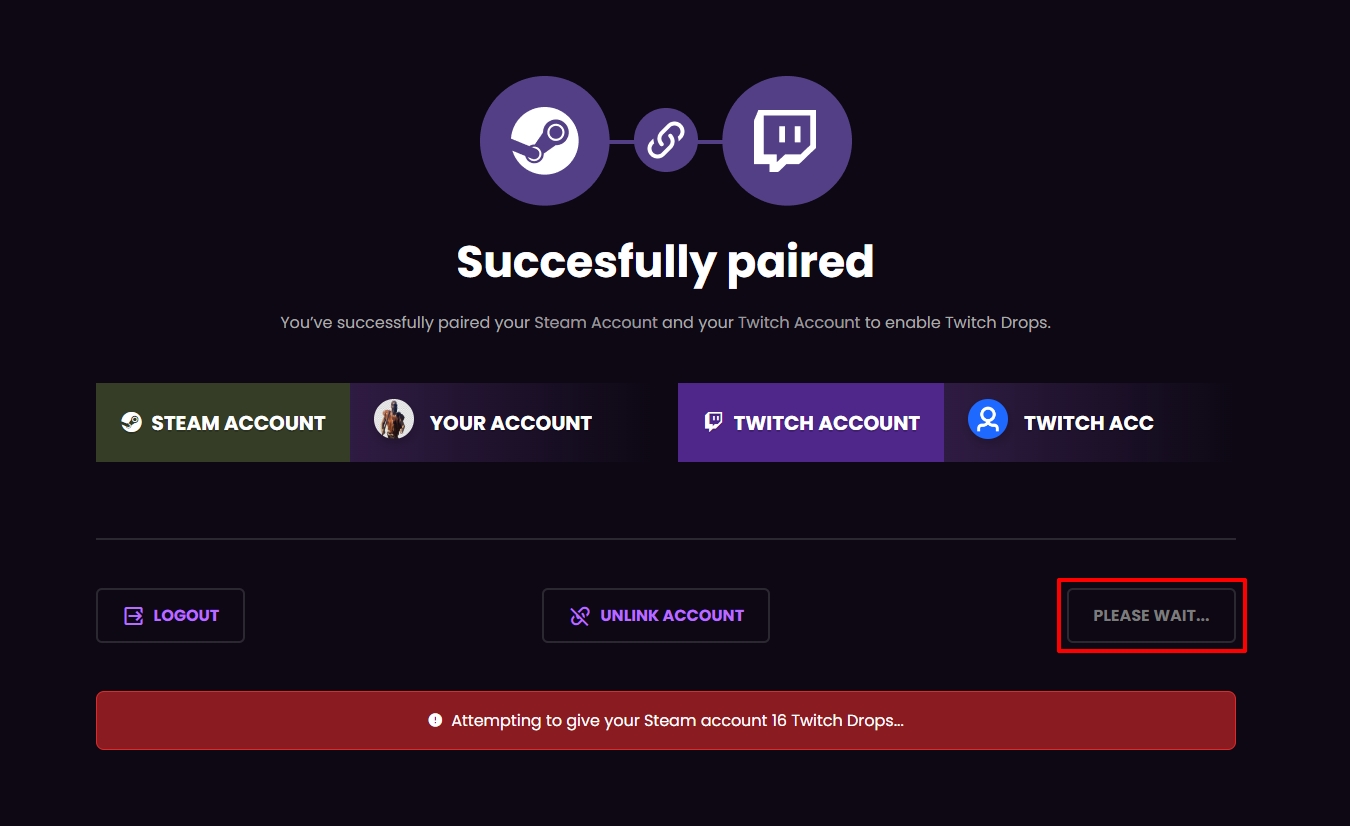
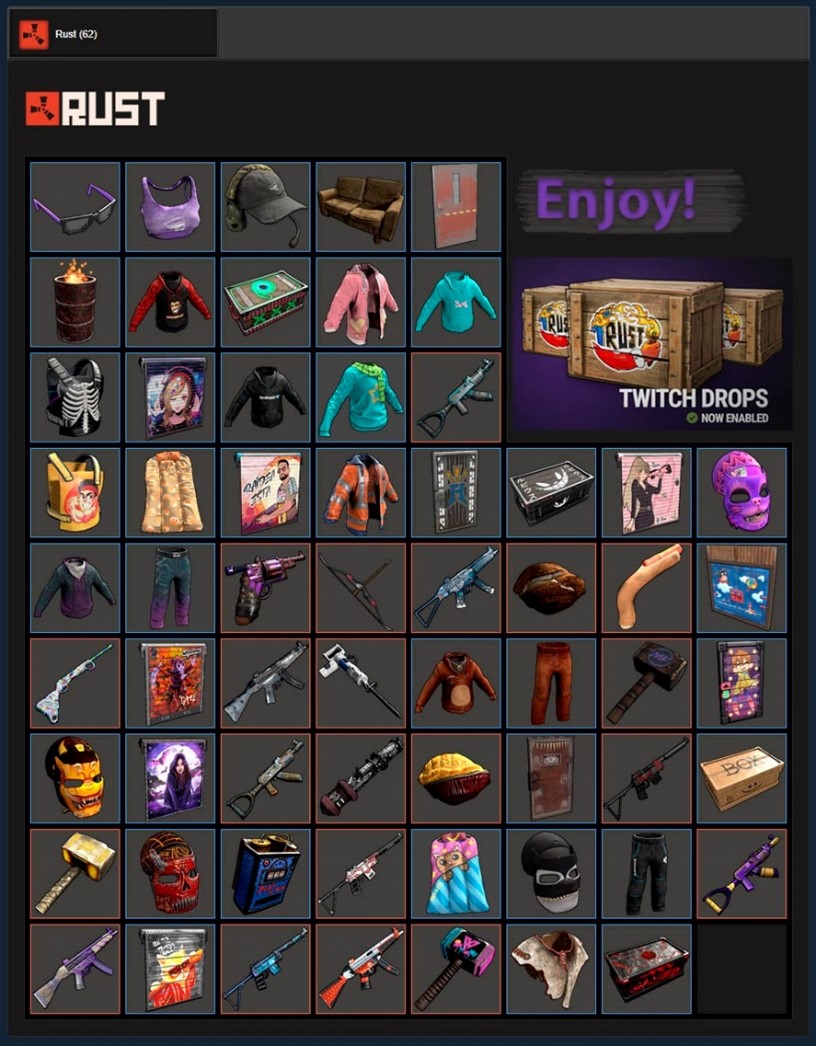
If the items have not arrived within one hour, then repeat step №2 - (Press the “CHECK FOR MISSING DROPS” BUTTON AGAIN). If the items still do not appear, check if you are receiving skins on your STEAM account.
ㅤ